Example
Jump to navigation
Jump to search
Exports are available for both maps and assessments. A map export URL can point to a specific map in revision history, or it can point to the current publication. The base URLs look like:
- https://app.reasonspace.com/arguments/{token}/export points to the current publication
- https://app.reasonspace.com/maps/{token}/export points to a specific history map
- https://app.reasonspace.com/assessments/{token}/export points to an assessment
The URL can take options for
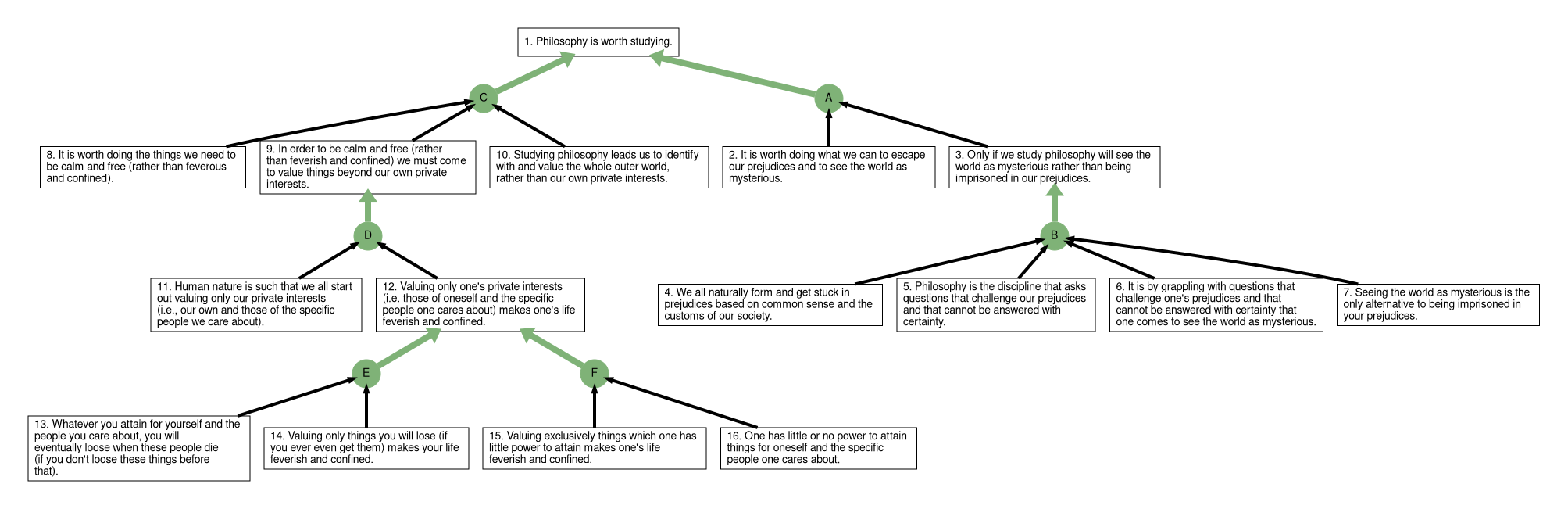
- embed - causes the URL to fetch an image, rather than trigger a download - use this to show the map as an image in Wikipedia
- dpi - sets the image resolution. Around 72-120 is fine for screens. The larger the number, the larger the image. Doesn't apply to PDF and SVG.
- size - sets the image size - not yet implemented
- hide_objections - an experimental option that will probably go away. true shows the map without objections
- format - Currently supports PDF, SVG, PNG, JPG, and CSV. In order for an embed URL to work in Wikipedia, the URL has to end with something that looks like an image format. Wikipedia isn't smart enough to determine whether the "dot-format" is part of an actual file name, or a param, so it works for the URL to end with "=.png" and Reasonspace tolerates a "dot" in the format name. For Reasonspace. "png" works just as well as ".png", but the "dot" is necessary to trick Wikipedia into thinking that the URL points to an image file.
A working URL looks like:
https://app.reasonspace.com/arguments/{token}/export?options[dpi]=72&options[embed]=true&options[format]=.png
where each option has the prefix "options" with the option name in square brackets. Since brackets are a special character in Wikimedia URL markup, they have to be entered as %5B and %5D in the URL.